Check the destination before editing your profile
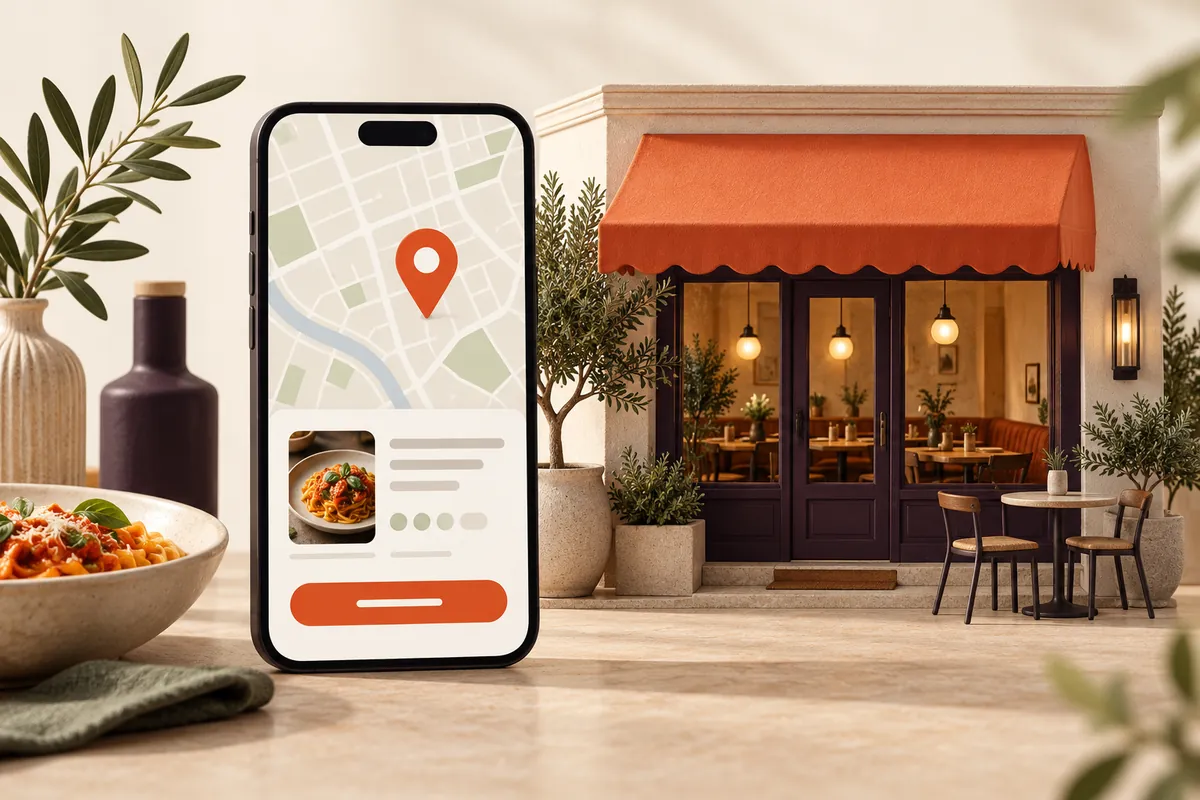
Open the restaurant’s ordering link on a phone while signed out of any management tools. Confirm it shows the correct restaurant, current menu, location and opening arrangements. The destination should be a customer-facing ordering page, not the supplier’s sales page or your private dashboard.
If you have more than one restaurant, use the correct ordering destination for each location. Ask someone unfamiliar with the setup to find the collection address and understand whether delivery is offered. Fix confusion at the destination before sending more visitors there.
Before sharing an ordering link from tastie. wait until your restaurant’s ordering site has been confirmed as active. An application receipt is not an ordering link and the tastie. restaurant sign-up page is not a place for customers to order food.
Add and choose the ordering link
Sign in to the Google account that manages the restaurant’s Business Profile. In Google Search, look for the food-ordering or pickup-and-delivery controls; in Maps, use the profile editing controls for that transaction type. Add the restaurant’s complete HTTPS ordering address and save it.
Where multiple eligible links are available, Google provides a preferred-link setting. Use it to identify your chosen ordering destination, then check how it appears publicly. The exact labels and available controls can differ by profile and interface. Follow Google’s current instructions for local business links if the controls differ from what you see.
A menu link and an ordering link serve different purposes. A PDF may let someone read your dishes, but it does not provide a checkout. Keep both destinations clear where your profile supports them.
Test the whole journey, not just the saved setting
- Find your restaurant in Google Search and Google Maps.
- Check that the address, telephone number and hours match the restaurant.
- Open the ordering option and confirm the correct location appears.
- Review the menu, charges, collection or delivery choice and customer support details.
- Repeat the check on mobile data as well as your own Wi-Fi.
Use the same destination on your website’s order button, social profile and approved printed material. Save a dated note of what you changed, so you can investigate later if an old link reappears or a supplier changes the destination.
Do not remove a useful service simply because it appears alongside your direct link. Decide which channels you intend to offer, then manage their links consistently with those arrangements.
Separate being found from being chosen
Google says local results depend mainly on relevance, distance and prominence, and that there is no way to request or pay for a better local ranking. Keep your business information accurate and current; an ordering link is not a ranking guarantee. See Google’s local-ranking guidance.
Review visits to your ordering destination alongside actual completed orders, customer questions and order failures. A rise in clicks can be useful, but it does not by itself establish additional sales. Compare equivalent trading periods and note changes to opening hours, promotions or availability.
If you are still preparing your direct channel, start with the collection launch checklist. Getting the service ready gives the new link somewhere useful to lead.