A five-minute photo checklist
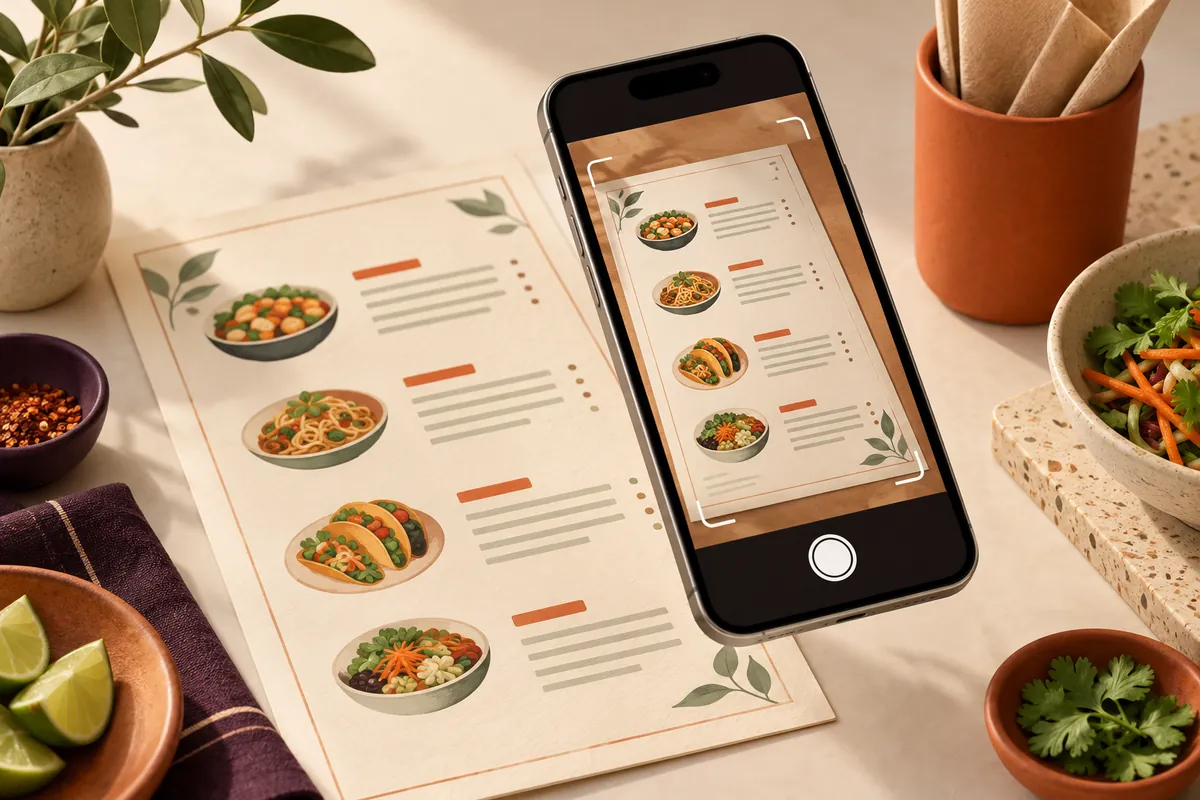
- Flatten the page. Open folded menus fully. Make sure the fold does not hide a digit or item name.
- Use even light. Move away from glare on laminated menus. A bright window can work well without flash.
- Keep your phone above the page. A straight-on photograph is easier to read than a sharp angle across a table.
- Include every edge. Do not crop the last price column or the small print at the bottom.
- Zoom in before sending. Check the smallest text and the difference between similar prices such as £6.50 and £8.50.
For a large menu, take one overview and then clear photographs of each section. Use a consistent order so it is obvious which parts belong together. Avoid including customers, receipts or private information in the background.
Send the details a photograph cannot explain
A menu image may not show whether a choice is required, whether two extras can be combined, or when a particular dish is available. Keep a short accompanying list of those rules and have it ready for the setup conversation.
Example setup note: “Lunch deal is weekdays only. Choose one main and one drink. Chips are an optional extra at £2. This replaces the old £1.50 price on page two.”
The application form on tastie. accepts up to five JPG, PNG, WebP or PDF files, with a maximum of 5 MB each and 10 MB in total. If your original photos are larger, export smaller copies and check that the prices remain readable. You can also supply a menu link, or apply first and send the menu later.
Review the prepared menu before it goes live
Work through the prepared version as if you were placing an order. Check every price, option, deal and description against your current menu. Confirm sold-out dishes have not slipped through from an old photograph. Keep one named person responsible for approving the final version.
Allergen information needs its own careful review; it must not be guessed from a dish name or photograph. Check the Food Standards Agency’s allergen guidance for England, Wales and Northern Ireland, or the relevant guidance for your location, and make sure your information is current.
Finish by testing one simple order, one order with extras and one meal deal. A readable photo starts the process; your final check makes the menu yours.